






How to Create a QuickBooks Online Sandbox (and Log In)
Step-by-step guide to creating a QuickBooks Online sandbox: set up an Intuit developer account, add a sandbox company, and log in to start testing.
Mike Honekamp
October 11, 2023
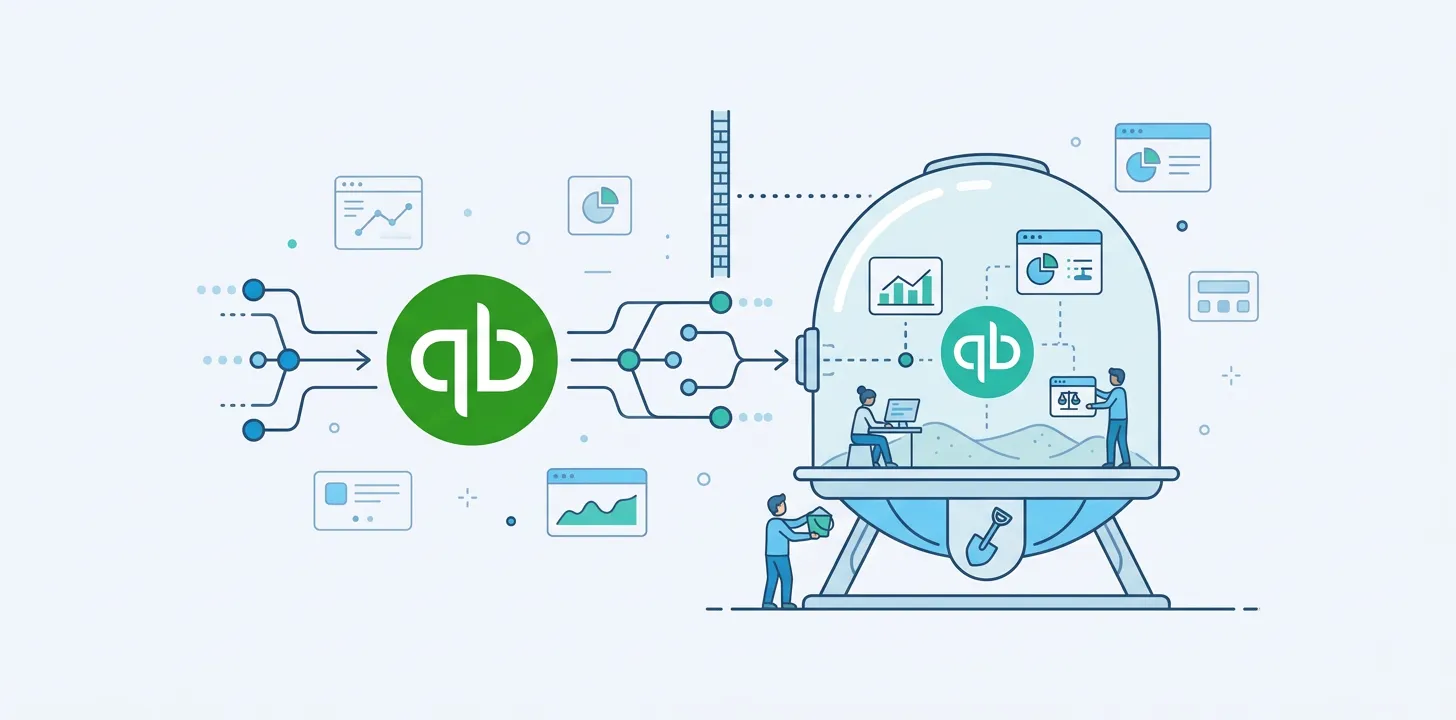
A QuickBooks Online sandbox is a free, fully functional test company that lets you try integrations and API work without touching real financial data. It’s the smart way to test before you go live — but Intuit doesn’t make it obvious where to find it. Here’s the whole process, start to finish.
Create a QuickBooks Online sandbox in 4 steps
- Sign in to the QuickBooks Developer Portal — go to developer.intuit.com and log in with your Intuit account (or sign up — it’s free).
- Open the Sandbox area — in the top-right, select API Docs & Tools → Sandbox (or click your profile icon and choose Sandbox).
- Add a sandbox company — click Add a sandbox company, choose your country, and create it. You can have up to five sandboxes per account.
- Log in to your sandbox — open the new sandbox company from the list, and you’re ready to test.
Below is the detailed walkthrough, plus a few things that trip people up.
Step 1 — Create a QuickBooks Online developer account
The sandbox lives inside Intuit’s developer platform, not your regular QuickBooks account. To get access:
- Open the QuickBooks Developer Portal at developer.intuit.com.
- Sign up or log in. If you already have an Intuit account, use those credentials. If not, click Sign Up to create one.
- Complete your profile — name, email, and a secure password. Accept the terms of service and privacy policy.
- Verify your email and log in to reach the developer dashboard.
Step 2 — Open the Sandbox area
Once you’re in the developer dashboard, look in the top-right corner and select API Docs & Tools → Sandbox.
Alternatively, click your profile icon and choose Sandbox from the dropdown menu. Either route lands you in the same place.
Step 3 — Add a sandbox company
In the Sandbox area:
- Click Add a sandbox company.
- Choose your country and confirm.
Your sandbox company is created instantly. Note that you can create a maximum of five sandboxes per developer account, so reuse them where you can.
Step 4 — Log in to your sandbox
Open your newly created sandbox company from the list to log in. It behaves like a live QuickBooks Online company — pre-loaded with sample data — so you can test freely without affecting real books.
Connecting your sandbox to Salesforce with Breadwinner
If you’re testing Breadwinner’s Salesforce QuickBooks Online integration, connect from a Salesforce Developer, Test, or Sandbox org.
Important: connecting to a sandbox works slightly differently from a live org. Instead of clicking the green Connect to QuickBooks button (which is for Trial or Active QuickBooks Online orgs), click the grey text beneath the green box. That’s the sandbox connection path — miss it and the connection won’t work.
That’s it — you’re set up to test.
Frequently asked questions
How do I log in to my QuickBooks sandbox?
From the QuickBooks Developer Portal (developer.intuit.com), go to API Docs & Tools → Sandbox (or profile icon → Sandbox), then open your sandbox company from the list.
How many QuickBooks Online sandboxes can I create?
Up to five per developer account.
Is a QuickBooks Online sandbox free?
Yes. Sandboxes are free with an Intuit developer account, and unlike a trial they don’t expire.
Why won’t my sandbox connect to my integration?
For a sandbox (as opposed to a live or trial org), use the sandbox-specific connect option. With Breadwinner, that’s the grey text beneath the green “Connect to QuickBooks” button, not the button itself.
Ready to connect QuickBooks and Salesforce? See how Breadwinner syncs invoices, payments, and customers in real time — get a demo.